
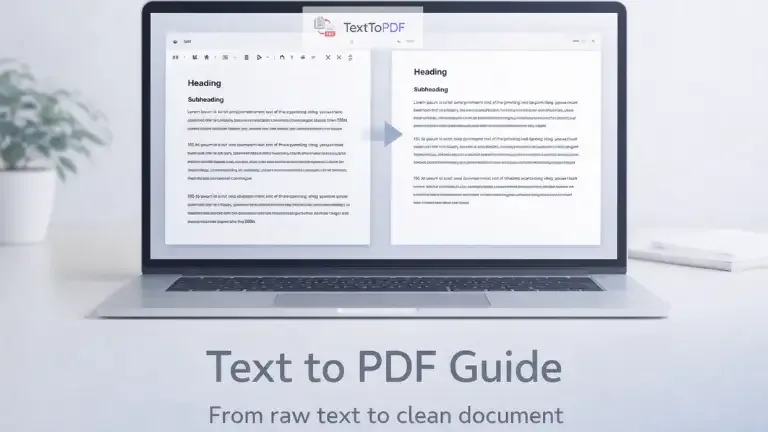
Guides
How to Convert Text Files to PDF?
A complete guide to converting plain text and text files into PDF documents with proper formatting, readable layout, and consistent output.
Read article
Type, paste, or upload text, format the document, set the page layout, preview the result, and download the finished PDF.
Write from scratch
A text file is not required when the document starts inside the editor. You can write the content there from the beginning, while existing text can be pasted from another app. Format the document and check the preview before saving the final PDF.
Start inside the editor when you want to write a new document and save it as PDF without creating a text file first.
Paste content from another app when the wording is already written, then review and format it before PDF creation.
TXT to PDF
Upload an existing .txt file when the text is already saved on your device. The content opens inside the editor before conversion, giving you time to review it, rename the PDF and change the page layout instead of exporting raw text exactly as it appears in the file.
Need richer source formatting? RTF import is available in Rich Text to PDF.
Document editor
Plain text does not describe how a finished PDF should be organised. Prepare simple notes with basic formatting or build a structured document with the blocks it actually needs.
Use headings, paragraphs, bold or italic text, font styles, links, alignment and lists for an organised written structure.
Add quotes, callouts, checklists, dividers or page breaks when sections need their own visual structure.
Insert inline code, code blocks, equations or tables when the PDF contains technical material.
Add sticky notes or date blocks, then reorder sections when the document needs further work before export.
More than plain text
Insert the content your document needs before export. Images, equations, tables, diagrams and fillable areas can all be prepared in the same workflow.
When a document needs a visual explanation, you can also build an Excalidraw diagram inside the editor instead of switching to another design tool.
Advanced PDF settings
The editor controls the content, while advanced PDF settings control how that content is placed on the final page. Choose a common document size or define your own dimensions, then adjust the page structure before creating the PDF.
Choose a standard page size or enter your own dimensions when the document needs a different format. Portrait and landscape layouts are available, and the page can also be divided into multiple columns. Margin controls sit in the same area, with preset sizes available alongside a custom option.
Font size, font styles, line spacing, paragraph spacing, first-line indentation and page background colour give you control over how much room the content uses on each page. Margin lines support solid, dashed, dotted and double styles with a custom colour.
Add a title or author to identify the PDF, then choose the header style and alignment. You can keep the header on the opening page when the document needs a different first-page presentation. Footer controls let you add supporting details and page numbering.
Add a subject, keywords and document language before export. Password protection can restrict access to the finished PDF, while status stamps can show Approved, Rejected, Draft, In Review or Paid.
Enter your own watermark text, then choose its position, colour, opacity and pattern. Single, repeating, diagonal, cross and circular patterns support drafts, ownership notices and review copies.
Review before export
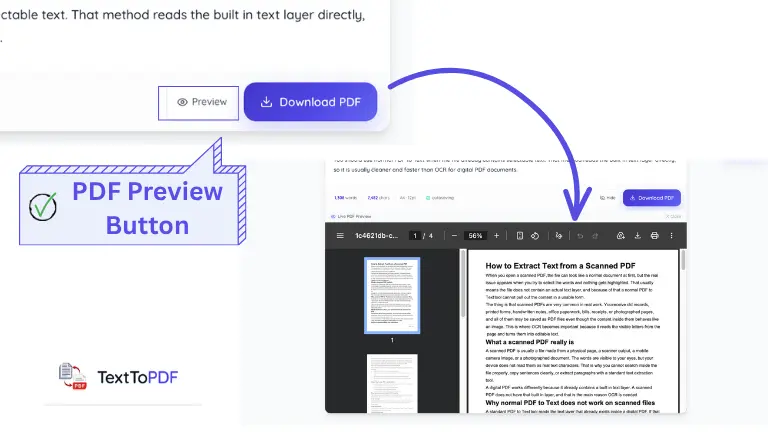
A PDF can look different once the document content is placed into its final page layout. Preview it before download to check the page structure and spacing while the source is still editable. If something looks wrong, return to the editor and correct it there instead of rebuilding the PDF after export.
TextToPDF.net keeps the main document workflow in one place: write or import content, format it, control the PDF page and preview the result before downloading.
Start typing, paste existing content or upload a TXT file, then keep the document editable until it is ready.
Use headings, lists, links, images, equations, tables, code blocks and page breaks before export.
Set page size, margins, spacing, headers, footers and page numbers, then preview the final PDF.
Add metadata, watermarks, status stamps, fillable fields and optional password protection before download.
Security and document control
Documents can contain information that should not remain visible or open to everyone. Use the document security controls to add password protection, metadata and workflow status before you share the finished file.
Read security detailsSet a password before export when the document should not open freely.
Pro AI tools can scan for supported PII risks and help redact sensitive content before export.
Show Approved, Rejected, Draft, In Review or Paid on the document when a clear workflow state is needed.
Reuse headers, letterheads, footers, watermarks and approval details for repeat business documents.
Advanced document workflows
Most people can create and format a PDF with the standard editor. Pro is for work that needs AI assistance, privacy checks, reusable business presets and tools for repeated document tasks.
Use the AI Document Copilot to prepare structured proposals, NDAs, reports or retainers from a guided workflow.
Run the AI pre-flight risk scanner or create executive summaries when a longer document needs another review.
Use AI form detection and translation workflows, including a parallel-column layout when both language versions should remain visible.
Pro can check supported personal details before export with AI redaction and the privacy guard. It also includes ready-made legal and proposal layouts, along with Code-to-PDF Studio.
AI features use metered Pro access. Check the pricing page for current limits and availability.
If the source file already contains richer formatting, you can import the RTF instead of rebuilding the document from plain text. The content opens inside the editor, where you can review it before creating the PDF.
Upgrade when your workflow grows
Keep using the complete Text and Rich Text PDF editor for free, and compare plans only when your workflow needs paid server processing or automation.
Start by typing, pasting or uploading text. Then format the document, configure the PDF layout, review security options and preview the final pages before downloading.
If the document is new, begin inside the editor and write there normally. Existing content can be pasted from another app. Saved documents can also be brought into the editor through TXT or RTF import.
The content stays editable before conversion, so you can organise the document before creating the final PDF.
Start with the content you already have. Write directly in the editor when you are creating a document from scratch, paste text from another app, or upload a TXT file when the content is already saved.
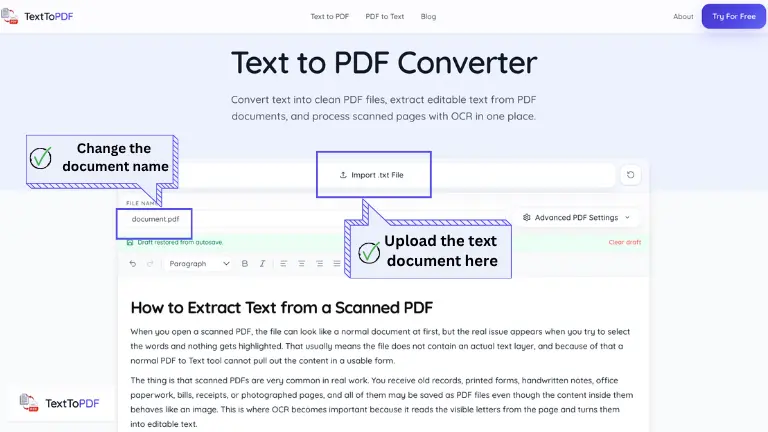
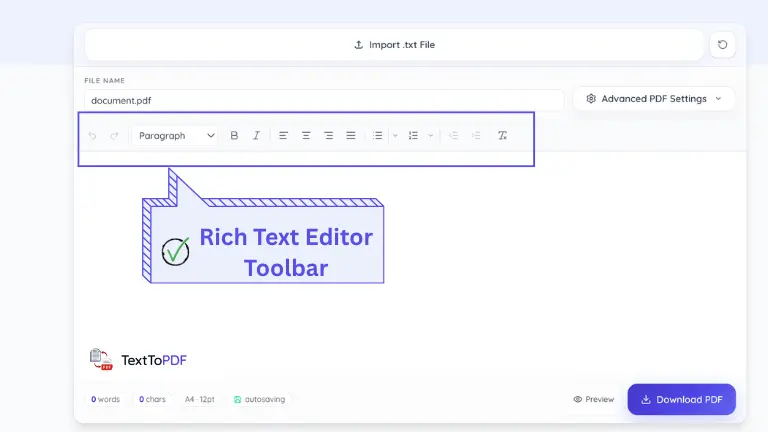
The editor keeps your content editable before PDF conversion. Use headings, paragraphs and lists for structure, then add the formatting or content blocks that the document actually needs.
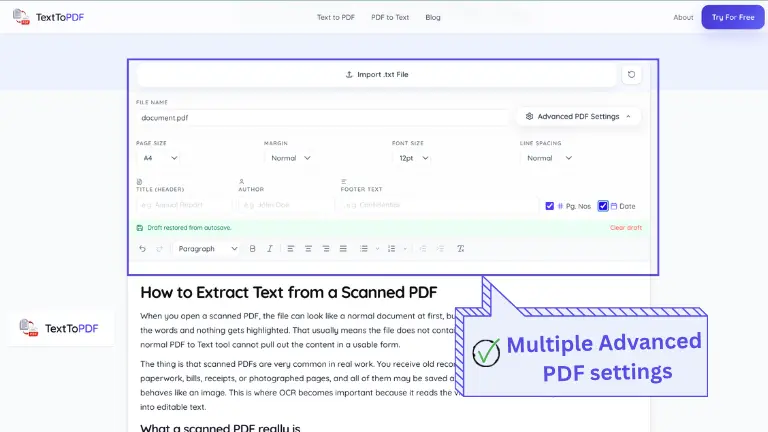
Text formatting changes the content itself, while the PDF settings decide how it sits on the page. Set the page size and orientation first, then adjust the margins when the document needs more or less room. Open the preview before export so layout problems can still be corrected inside the editor.
Once everything looks right in the editor, create the PDF. The downloaded file follows the text and page layout you already set, so you do not have to format the document again after export. This works the same for text you write inside the editor and for content you bring in from elsewhere.
Watch this video to know how to turn text into a clean PDF in a few simple steps before you try the converter yourself.
How to Convert Text to PDF in Seconds (Free & Easy Guide) 2026
Watch the complete text-to-PDF workflow when you are ready. The video loads only after you press play.
TextToPDF.net works for short notes, study material, business reports, technical documents and reusable forms. Start with typed text, pasted content or a TXT file, then build the PDF around the document you actually need.
Type class notes directly or paste study material into the editor when you need a PDF copy that can be saved or submitted.
Prepare written reports with headings, tables or supporting images, then add page numbers or document details before export.
Code blocks, inline code, equations and diagrams help when a PDF contains technical information rather than normal prose alone.
Add fillable fields, checkboxes, date fields and signature boxes when the document needs information to be completed after it is created.
Find answers about typing text, uploading files, formatting documents and creating PDFs with TextToPDF.net.
Learn how to prepare text, format a document and solve common PDF conversion problems with practical guides from the TextToPDF team.
A complete guide to converting plain text and text files into PDF documents with proper formatting, readable layout, and consistent output.
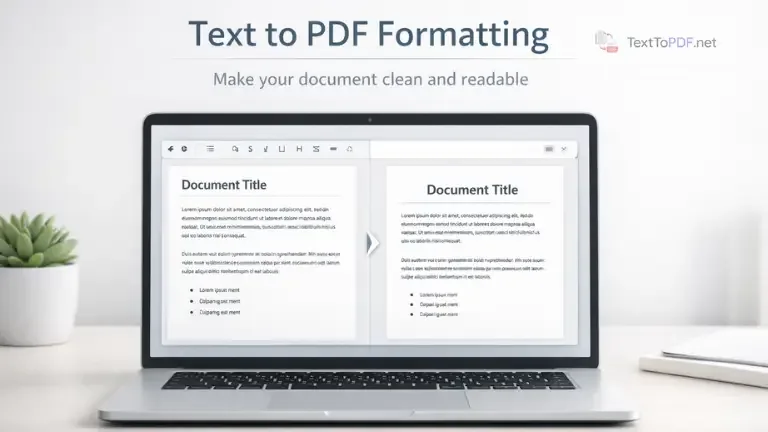
Learn how to structure your raw text files to get the best looking PDF output every time.
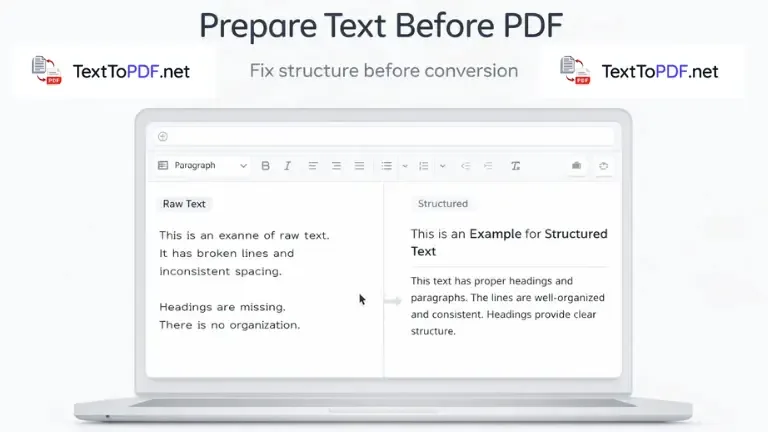
Learn how to clean, structure, and organize plain text before converting it into a PDF so your final document looks clear, readable, and consistent.

Understand how RTF and plain text change the final PDF output. See when plain text is enough, when RTF gives a better result, and what to check before export.
TextToPDF ecosystem
You can also install our Android app and Chrome extension for faster everyday PDF tasks. If you are a WordPress developer or website owner, install our WordPress plugin to add TextToPDF-powered PDF workflows directly to your site.
Explore more tools
Security and Trust
Your documents may contain invoices, receipts, notes, or contracts. TextToPDF explains how temporary processing and document handling work before you create and download a PDF.
Server tools process your file only to create the result you requested, such as a PDF file or extracted text output.
Supported conversion tools keep more work inside your browser when the task allows it.
Supported formats, privacy details and editorial policies are available before you upload a document.
Review the document settings and output controls before you download the finished PDF.
TextToPDF keeps its product information and policies easy to check. You can review file handling, supported formats and privacy details before you upload a document.
Meet the team behind the tools and learn how we build practical document workflows.
Read Text-to-PDF, formatting and document conversion guides from the TextToPDF team.
How temporary processing, file handling, and deletion policies work.
How guides, updates, and technical content are reviewed before publication.
How we fix mistakes and keep public content current.
The file types and document formats currently available across the tools.